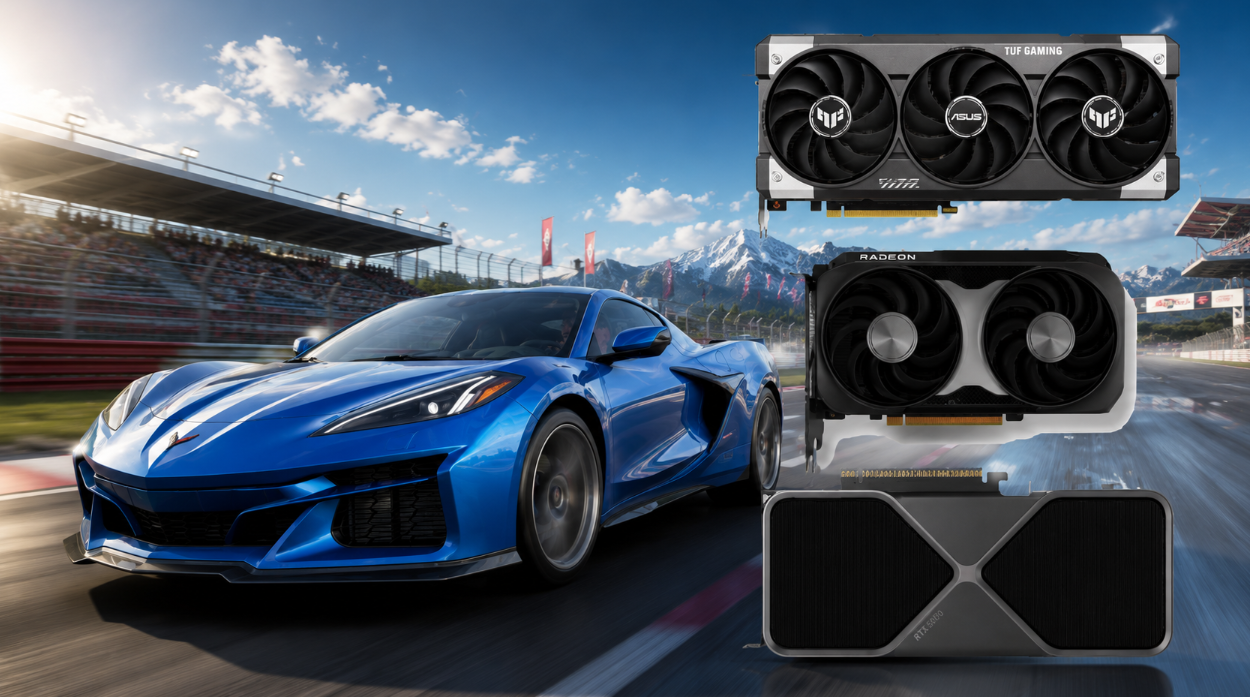
Forza Horizon 6 is a game with demanding settings. One moment you’re racing along a perfectly polished track, the sun’s rays glinting off the hood, and the image is so vibrant you’d be bewildered. The next, your graphics card fans kick into jet mode, and your FPS plummets.
Spoiler: to race across the vast expanses of Japan in comfort, you don’t need to build a PC that costs as much as a used car. Just tweak the graphics settings wisely, and you’ll get a stable frame rate and a pleasing image. The key is to avoid tweaking performance-killing settings.
Table of Contents
Basic graphics settings for FPS optimization
This section is the foundation. It determines whether Forza Horizon 6 will lag or fly, and how clearly you’ll see that cherry blossom outside your window.
-
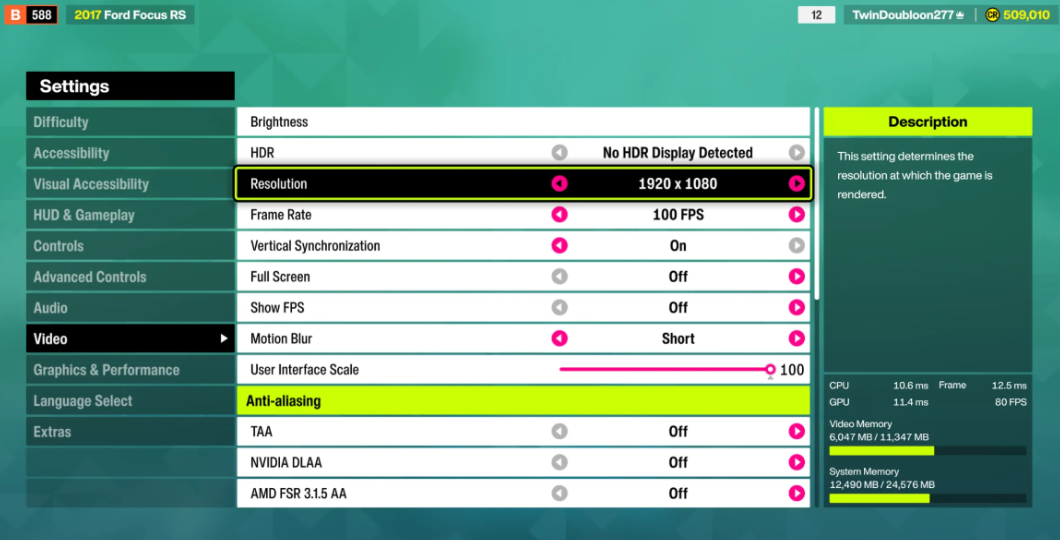
Screen resolution – set it to the native resolution: 1080p, 1440p, or 4K. Any scaling or downscaling will result in blurry textures and jagged edges. Don’t do it.
-
Frame rate cap — ideally tied to your monitor’s refresh rate. Let’s say you have 144Hz, set it to 144 FPS. Or 120 if your card can’t handle it. This will relieve unnecessary strain on the GPU and eliminate sudden drops.
-
Vertical Sync (V-Sync) — enable it if you notice screen tearing. But the eSports athlete in you might want to turn it off: it reduces input lag a bit. Find your own compromise.
-
Fullscreen mode — only in the most extreme cases. No options. No windowed mode, no borderless mode. Otherwise, performance will plummet.
-
Motion blur — set it to “short” or disable it completely. No blurring on turns; we want sharpness and a sense of speed, not watercolors.
-
Interface scaling — 100%. Everything else is either too small or interferes with the road.
-
TAA (Temporal Anti-Aliasing) — safely off. In FH6, this method turns the image into mush during fast movement. Don’t bother.
-
NVIDIA DLAA — If you have a powerful green card, turn it on. The best anti-aliasing at native resolution: cars become razor-sharp.
-
AMD FSR 3.1.5 — your choice for high-end AMD graphics cards. It provides a significant frame rate boost with minimal quality loss.
-
Intel XeSS — for Intel Arc owners (and some other systems without RTX). A working option, sometimes even better than FSR.
-
FidelityFX CAS — leave it off. Sharpening adds an unpleasant graininess to the image and emphasizes motion artifacts.
Fine-tuning graphics and effects for Forza Horizon 6
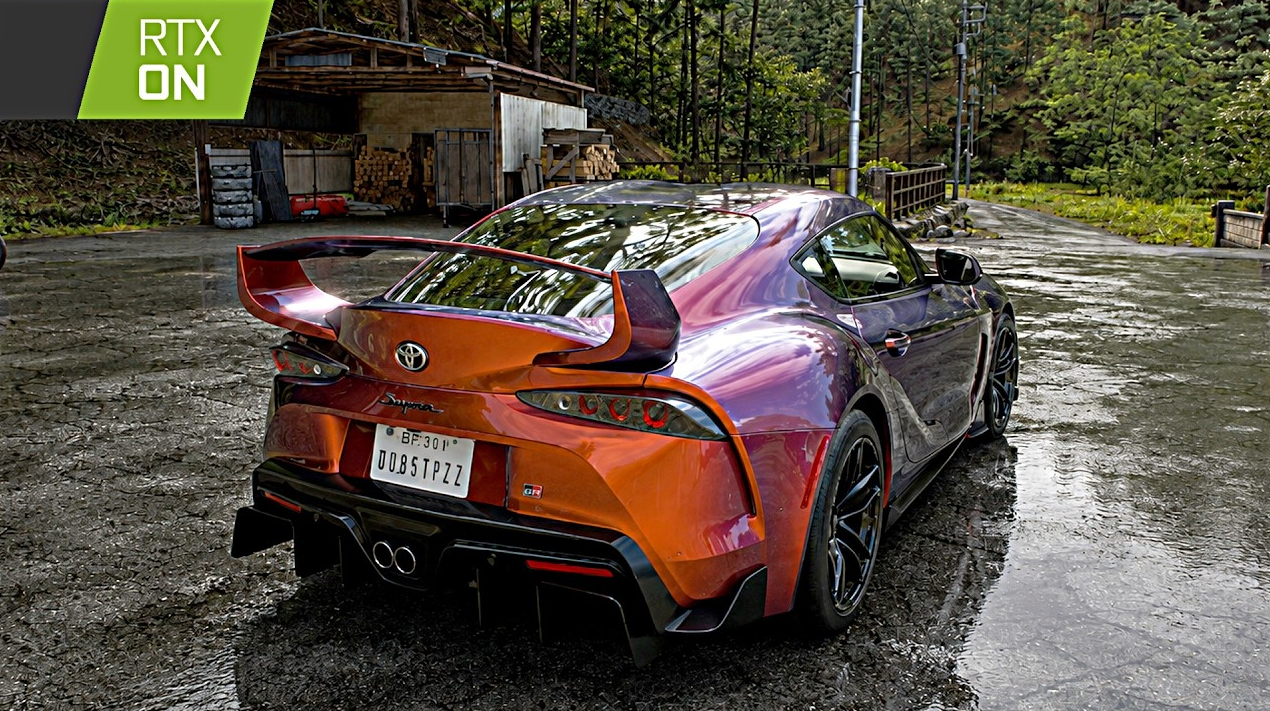
Let’s get to the meat of the action. Lighting, fog, particles, terrain—everything that transforms Forza Horizon 6 into a postcard-perfect Japan, but with the wrong settings, it can drop your FPS to the ground. Below is the sweet spot.
-
Preset — “Custom” only. Automatic profiles either eat up resources or produce a spam image. Manual settings are your choice.
-
Car detail — set to “High.” Ultra is barely noticeable while driving, but it’s a serious power hog. Cars will still shine.
-
Environmental texture quality — “Ultra” is a good option here. Roads, grass, buildings, signs with hieroglyphs—these are constantly noticeable. It pays off.
-
Environmental geometry quality — “High” is sufficient. The detail on distant hills and rooftops shouldn’t kill your CPU. It’s a fair compromise.
-
Car Reflection Quality — “High.” Realistic car body shine without the “Extreme” mode. You’ll only notice the difference between “High” and “Extreme” while standing still.
-
Screen Space Reflection Quality — also “High.” Wet asphalt, puddles, and glare on the hood after rain look expensive, but require some patience.
-
Ray Tracing (Reflections) — turn it off without regret. At speeds approaching 200 km/h, you won’t even have time to notice how the light reflects off a shop window. Your graphics card will thank you.
-
Shadow Quality — “High.” Shadows are free of blur and artifacts, but without going overboard. Excellent balance.
-
Night Shadows — boldly set to “Off.” It’s already dark at night, but performance jumps noticeably. No one will notice the fakery.
-
Screen Space GI Quality — “High.” Second-order global illumination makes the world three-dimensional. Ultra settings, and especially GI tracing, are for screenshots.
-
Ray tracing (GI) — is another frame hog. Turn it off. The difference in dynamics is close to zero, and the FPS drop is double-digit.
-
Shader Quality — “High.” Materials, metal, plastic, glass—everything will remain sharp. No surprises.
-
Sound Quality — “Ultra.” Why not? Sound barely affects performance, but the engine roars richly, and the rain pounding the roof is believable.
-
Deformable Terrain Quality — “High.” Tracks in mud, ruts in the snow, and dust from wheels are sufficient. The processor doesn’t boil over.
-
Particle Effects Quality — “Ultra.” Smoke, sparks from wheels, fireworks, and foliage create atmosphere. The load is moderate, the image is rich.
-
Volumetric Fog Quality — “High.” Fog over rice fields, morning mist, sunset haze—beautiful. Ultra adds volumetric calculations you won’t appreciate.
-
Lens effects — “Ultra.” Flares, flares, and reflections on the helmet glass are minor, but nice. Especially at sunset.
-
Motion blur quality — “High.” The speed feels better; the image doesn’t break up into individual frames, but it doesn’t turn into watercolors either.
Four ready-made graphics presets for any graphics card
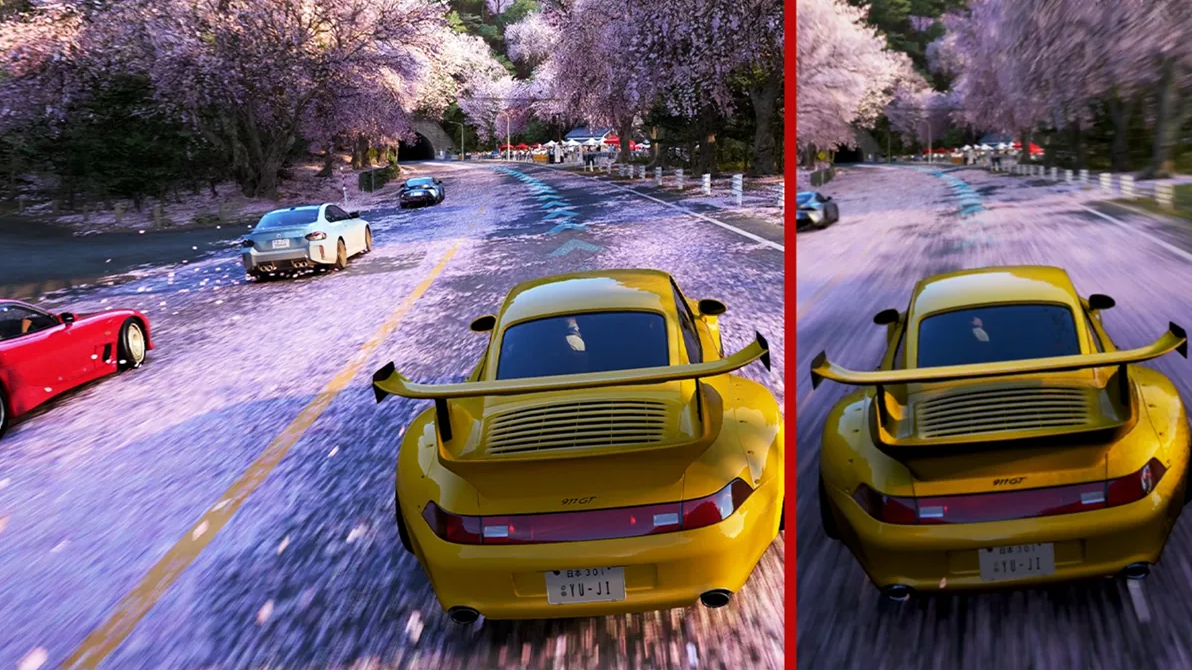
We’ve covered the individual sliders, now let’s put it all together. Here are four ready-made profiles: for sweaty online races, chilled-out rides across Japan, juicy screenshots, and mobile gaming.
Let’s start with the heaviest configuration—”Ultra Graphics.” This preset is designed exclusively for streams, reviews, and meditative photo shoots with Mount Fuji in the background. Ray tracing is in full effect here. Native 4K without any hacks is only sufficient for RTX 4090 owners, who will get a stable 50-65 FPS. RTX 4080-class cards will manage 55-75 FPS, but with DLAA enabled. Multiplayer is a pain at that frame rate.
“Balanced” is the foundation. A good choice for graphics cards like the RTX 4070 or RX 7800 XT at 1080p and 1440p. We disable the power-hungry ray tracing, but leave particles and textures on Ultra. The image remains vibrant, and your nerves are in good shape.
The “Esports” preset has one goal: to give you a stable 144+ FPS without a single stutter, even in densely populated Japanese villages. We disable motion blur completely (in heavy traffic, this effect only blurs the view). Switching upscaling to performance mode reduces the load on the chip by almost 40%. No unnecessary bells and whistles.
Forza Horizon 6 Graphics Settings on Laptops
“Laptops” require a special approach, and the main drawback lies in the thermal design power (TDP). Mobile RTX 4050 and RTX 4060 graphics cards are highly dependent on the vendor. For example, the Lenovo Legion 5i, with its full 80W, easily outperforms the ASUS TUF Gaming A15, which has reduced power consumption, by a good third of the frame rate. Our chart is based on the weakest versions. If your mobile GPU doesn’t exceed 83°C and the frame rate doesn’t drop below 55 FPS, feel free to add textures.
To avoid fiddling with the menus, download profiles directly to NVIDIA App or AMD Software Adrenalin. The frame limit is also written there, so switching will take a second.
Next article: Guide to Hakone Nanamagari Race (Location, Setup, Win).