Forza Horizon 6 is a long-awaited release, but for some players, it’s turning into an unpleasant surprise: a sudden crash to the desktop with the mysterious FHE01 code and the caption “Unexpected Error.” Let’s be clear: don’t panic. While annoying, this error is almost always fixable, and in most cases, the root cause is trivial—corrupted game files or an outdated graphics card driver.
However, more complex issues can arise: shader cache, background utilities, conflicts with Windows, or even third-party software like overlays and RGB software. The good news is that checking several points sequentially is almost guaranteed to restore stability—and we’ll now cover the most effective methods.
Table of Contents
Diagnosing a Forza Horizon 6 Crash Based on the Crash Time
The FHE01 code is a classic placeholder. The laconic “Unexpected Error” message masks a dozen completely different technical issues, from a simple software conflict to hardware overheating. However, localizing the problem is easier than it seems—just pinpoint the exact timing of the crash. The screen where the game sends you to the desktop gives away the culprit. To avoid wasting hours chaotically trying all the known fixes, identify your scenario using our interactive crash map.
FHE01 Technical Failure Symptoms and Causes
A clear understanding of the symptoms will save you a ton of time. Once you’ve identified your specific issue in the table, you can safely ignore the rest of the tips and move on to targeted solutions. If your game suffers from intermittent updates and crashes at random points, we recommend testing solutions strictly in order, from top to bottom. We’ve deliberately organized this list from the most common and harmless software bugs to rare hardware issues.
Instructions for troubleshooting an Unexpected Error in a game
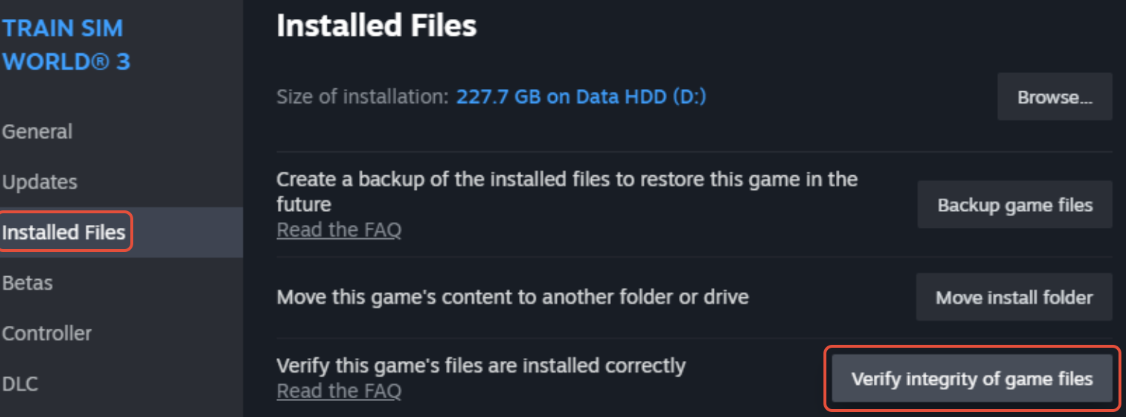
Verifying and repairing game files in Steam
This is the quickest and most painless step. If you’re playing through Steam, the process is simple:
-
Open your library,
-
Right-click the game,
-
Select “Properties,” then the “Installed Files” tab,
-
Click “Verify Integrity.”
For Xbox app or Microsoft Store users, the procedure is similar: in the game management settings, find the “Verify and Repair” option. The client will automatically download any missing or corrupted files—and this is often enough to resolve the crash.
Clean installation of the latest GPU drivers
If checking doesn’t help, it’s time to check your graphics card drivers. NVIDIA users should run GeForce Experience, AMD fans should use Adrenalin Software, and Intel users should use the Intel Driver and Support Assistant. Have you downloaded the latest version? Great. Now restart your computer—this is important because many changes take effect only after a restart.
Setting up access rights and updating the operating system
Sometimes the game stumbles over access rights. Try running the Forza Horizon 6 executable or shortcut as administrator—the context menu, a couple of clicks, and the problem may resolve.
Also, don’t skip system updates. Windows regularly releases patches that block compatibility with major games, especially after major updates. Go to the Update Center, install all available updates, and reboot.
Disabling background software and conflicting overlays
Before launching, close all unnecessary applications: dozens of browser tabs, video recording programs, keyboard backlighting utilities, temperature monitoring applications—all of these consume resources and can interfere with the game engine. Overlays like Discord or MSI Afterburner are especially insidious—it’s best to disable them during your session.
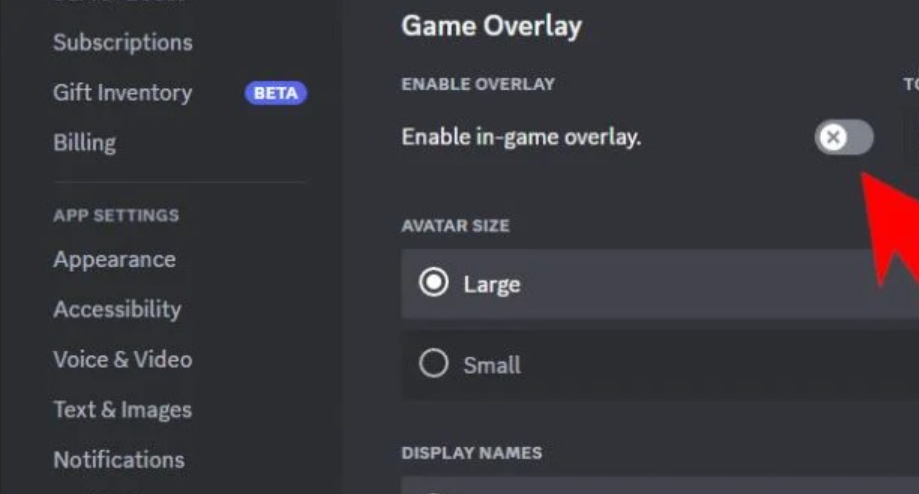
If you’ve followed all the steps and the FHE01 error still persists, don’t despair. In the next section, we’ll cover more in-depth methods: editing the registry, adjusting virtual memory settings, and manually clearing the shader cache. But in 80% of cases, the steps described above are enough to get Forza Horizon 6 running smoothly and enjoying racing without unexpected interruptions.
Resetting the DirectX Shader Cache and a Clean Boot
Sometimes, even though the system integrity is intact and the drivers are up-to-date, crashes persist. In such cases, simply clearing the shader cache often helps. NVIDIA users find this option hidden in the driver settings, while AMD users have a reset button in Adrenalin Software. But you shouldn’t ignore Windows’ built-in tools either: run Disk Cleanup and check “DirectX Shader Cache”—a couple of clicks, and the junk is gone.
If that doesn’t work, we move on to the big guns—a clean boot. Open System Configuration (msconfig), disable all third-party services, then disable startup programs using Task Manager. Reboot and launch Forza Horizon 6 in a clean environment. This will quickly determine if the game is conflicting with any unnoticed background software.
Rolling back unstable CPU and GPU overclocking
This next point is often overlooked. Your CPU or GPU is working reliably in benchmarks and other titles, but Forza Horizon 6 suddenly starts throwing the FHE01 error. Coincidence? Unlikely. The game is sensitive to unstable clock rates, even if your overclocking seemed reliable. Reset all CPU and GPU settings to factory defaults and test again. According to reviews, this helps in a significant percentage of cases.
Analyzing crash logs via Windows Event Viewer
None of the above worked? Then let’s dig deeper. The built-in Windows Event Viewer is a scary-looking, but very useful tool. Press Win + R, type Event Viewer, then go to Windows Logs → Application. Look for entries with a red error icon that coincide with the time of the crash. It may indicate a specific module or driver that crashed, which is a good clue for a targeted solution.
Completely uninstalling the Overwolf platform to fix bugs
Now for a more unconventional approach. Many players have reported that uninstalling Overwolf completely resolved the FHE01 error, even when reinstalling the game itself had no effect. The procedure is simple:
-
Close Overwolf via the tray icon (right-click → “Exit”).
-
Open Windows “Settings” (Win + I) → “Apps” → “Installed Apps.”
-
Find Overwolf in the list, click the three dots, and select “Uninstall.”
-
Follow the on-screen instructions—you can uninstall just the app itself or the entire platform.
-
After completing the steps, be sure to restart your computer.
And only then try launching Forza Horizon 6—this is often the final chord.
Forza Horizon 6 Technical Issues FAQ
What causes the FHE01 error?
Most often, it’s caused by corrupted game files, outdated GPU drivers, corrupted runtime libraries, a cluttered shader cache, conflicts with background software, or unstable overclocking.
Can old drivers cause this crash?
Absolutely. This is one of the top causes, and updating drivers is the first thing to try if verifying files doesn’t help.
Does integrity checking really work?
Yes, very often. Steam and the Xbox app replace all corrupted or missing components, and the game runs smoothly.
Should you update the BIOS?
Only if you’ve tried absolutely everything and the problem persists. Updating your motherboard firmware can improve hardware compatibility, but this is a last resort for advanced users—don’t rush until you’ve exhausted simpler options.