Did you accidentally hide your favorite title in the Steam library and now you can’t find it? It’s easier to return a game from hidden on a PC: click “View” in the upper-left corner of the client, select “Hidden Games”, and then return the missing game via the “Management” tab. We understand all the nuances of the interface, including bugs with filters and settings for portables.
Table of Contents
Where to find a list of hidden Steam games on PC?
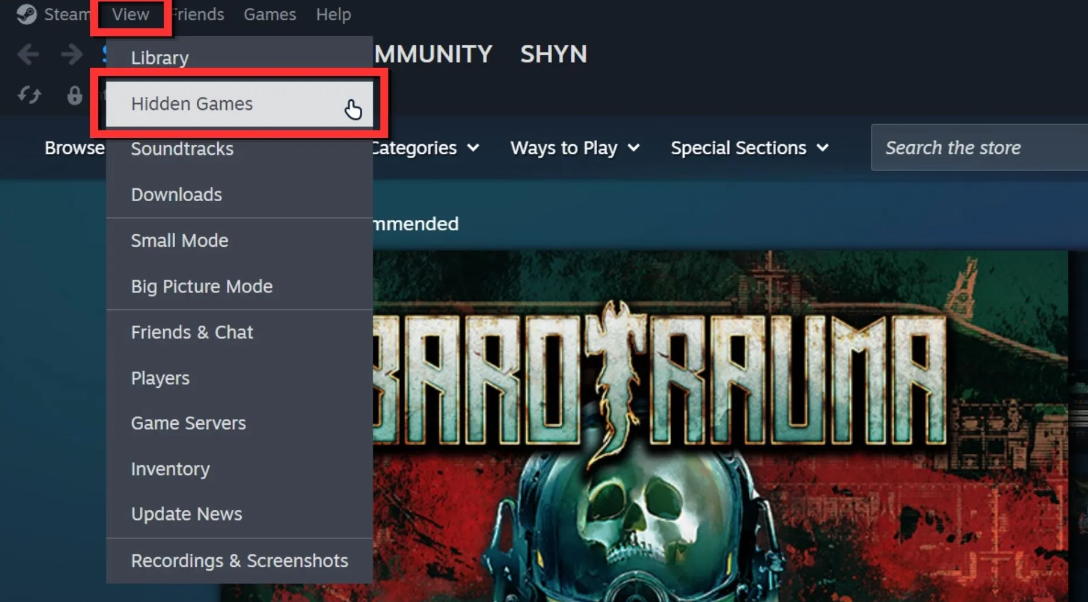
Finding hidden projects in a desktop client is a matter of a couple of clicks. Open Steam on PC. At the very top left, we are looking for the “View” menu. We click there, and in the context menu that appears, we are interested in the line “Hidden games”. Pressed? Great. Now you have a secret archive of everything that you once decided to put out of sight. Apparently, Valve has finally made this navigation really intuitive. If the library is suddenly empty, although you definitely remember the hidden titles, check the left panel. There’s a drop-down menu: make sure there’s a check mark next to the “Games” category.
Filter error: Why hidden games are not displayed
Did you go to the right section, and there was emptiness and an annoying error message about the viewing filter? It’s a familiar story. Most likely, the Steam client is just trying to weed out non-installed projects. You probably have the toggle switch “Show only ready-to-run games” activated. Because of it, the system cuts everything that is not downloaded to the hard drive right now.
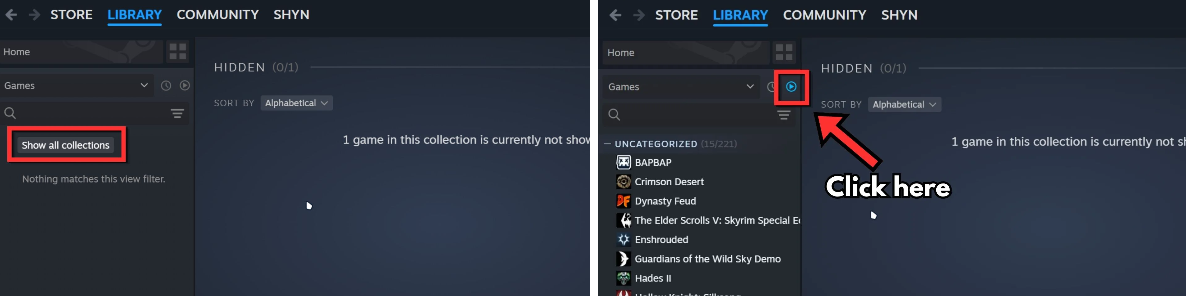
To turn off this filter, proceed as follows:
-
On the left side of the window, click on the saving “Show all collections” button. It will display the entire library and active filters.
-
We are looking for the playback icon in the circle. It usually sticks out next to the “Games” filter.
-
Click on it. The blue icon will turn gray — the filter is disabled.
The magic worked. Now the whole hidden library is in the palm of your hand.
How to remove a game from hidden on Steam and return it to the library?
So, we got to the archive itself. It is quite easy to return projects back to the general list.
-
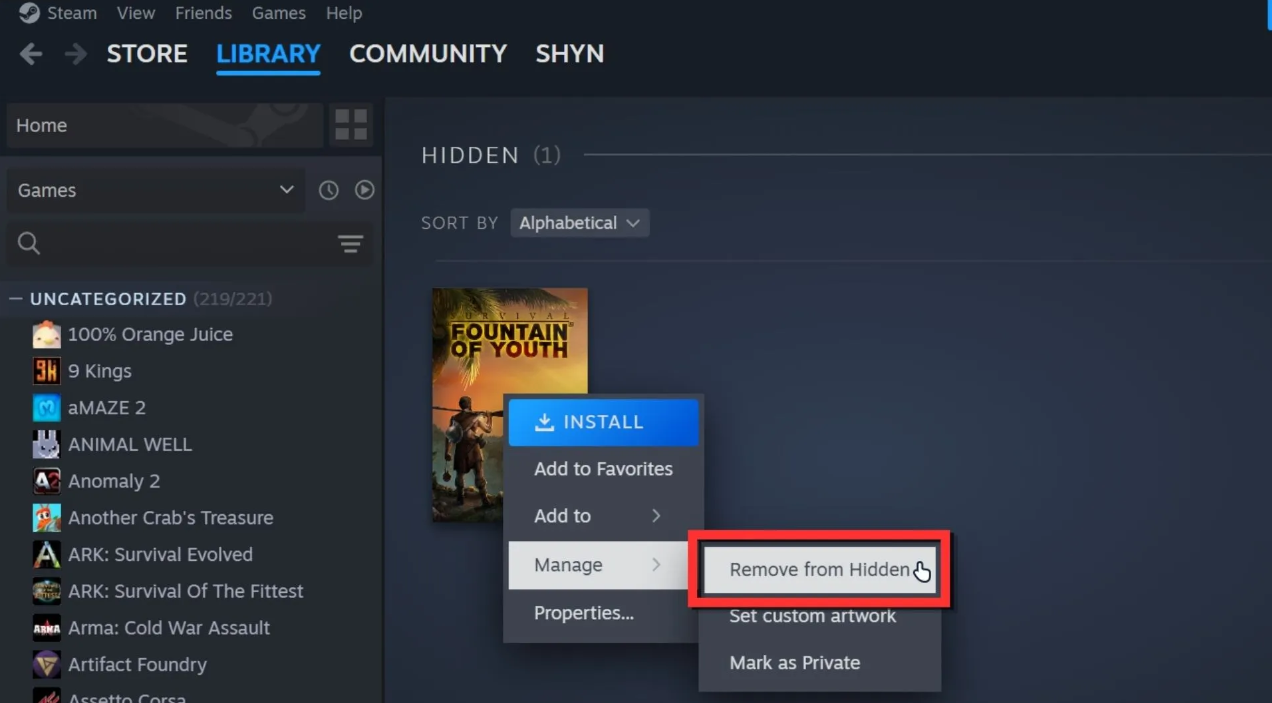
Right-click on the cover of the desired title.
-
A menu will pop up where we need the “Management” line.
-
Next, click the coveted “Remove from hidden”.
That’s all. The project is back in your main Steam collection. By the way, you can throw it back into the digital closet in exactly the same way, simply by selecting the hide option.
How to view hidden Games on Steam Deck and Pull them out?
With Valve’s laptop, the story is a little trickier. The interface of the Big Picture mode works according to its own rules. Open the Steam menu in the lower left corner and dive into the Settings. On the left panel, select the Home section. There you will see an inscription about the number of hidden titles — feel free to click “Control” in front of it. Your entire secret collection will be revealed.
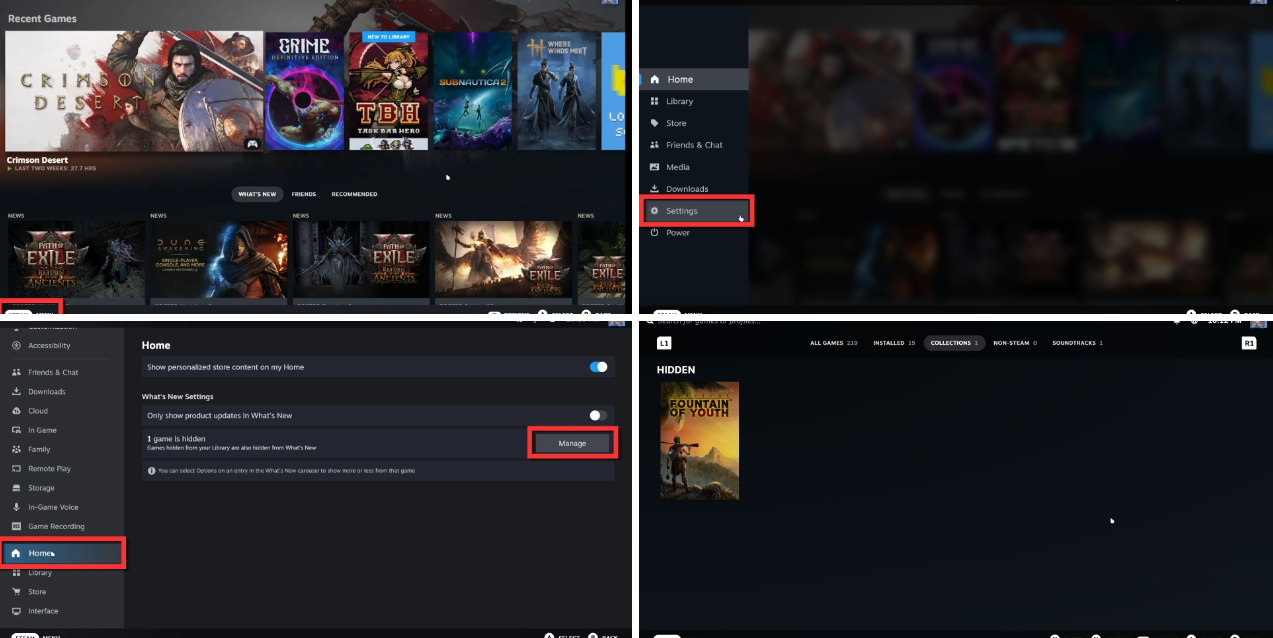
To pull out a project from there, pinch its cover, go to “Manage” and click “Remove from hidden”. Those who use the Steam Deck via desktop mode can simply use the classic instructions for the PC client.
What to do if Steam Deck doesn’t show hidden games?
There is one extremely unobvious bug on the laptop. The interface will refuse to show your caches if there is not a single user folder in the library. To fix the system, you’ll have to create at least one (its contents don’t matter at all).
-
We clip the cover of any title in the library.
-
Select “Add to” and then click on “New Collection”.
-
We enter any name and confirm it through “Create collection”.
-
The system will ask whether to show collections. We agree.
After this small crutch, the notorious hidden content section will start working flawlessly.