In the open world of Neverness to Everness, you can directly control the weather and rewind the clock at will. The time system is available from the very first minute — and yes, it is purely cosmetic. These tricks do not affect the gameplay, but for beautiful screenshots or the atmosphere it is the most important thing. However, this definitely does not harm the overall aesthetic impression — rather, it adds to the immersion.
Table of Contents
The interface of the NTE time management system
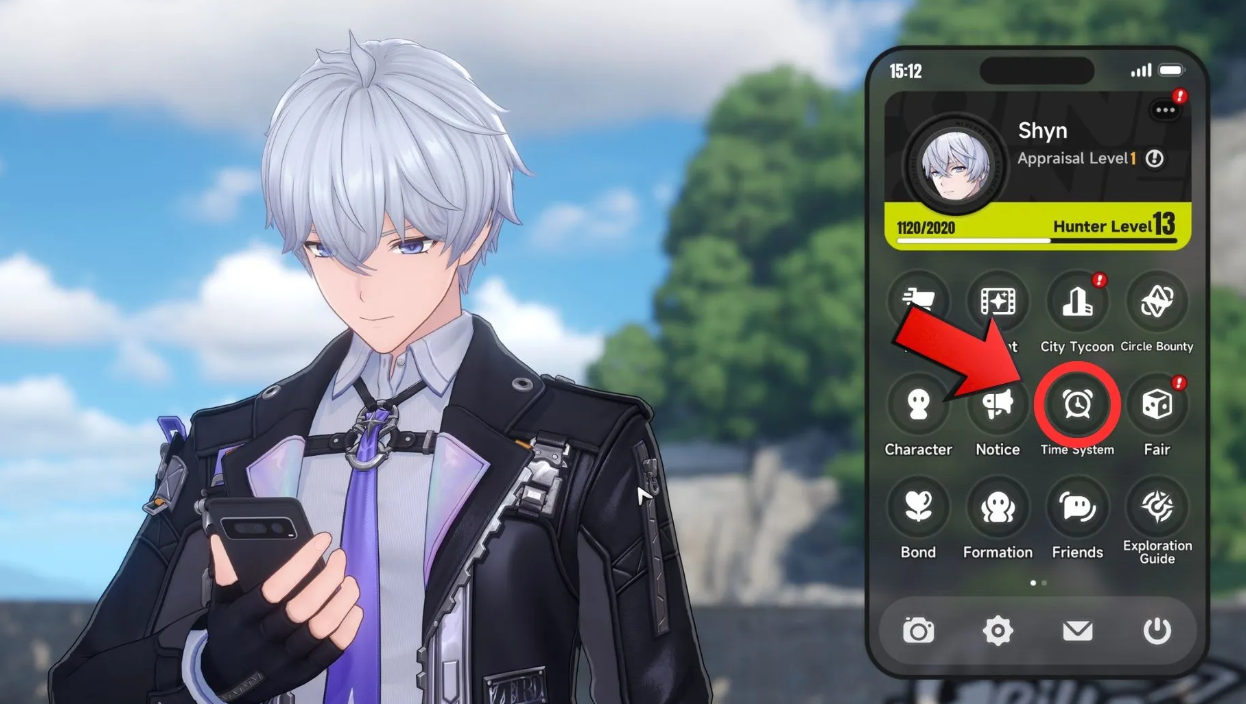
Ways to access the menu via the phone and the radial menu
Everything is controlled via the “Time System” interface. There are two ways to trigger it:
-
Tap on the phone icon in the upper-right corner of the screen → select “Time system”.
-
Or use the radial menu (if you have configured it in advance).
Description of the controls and the dial
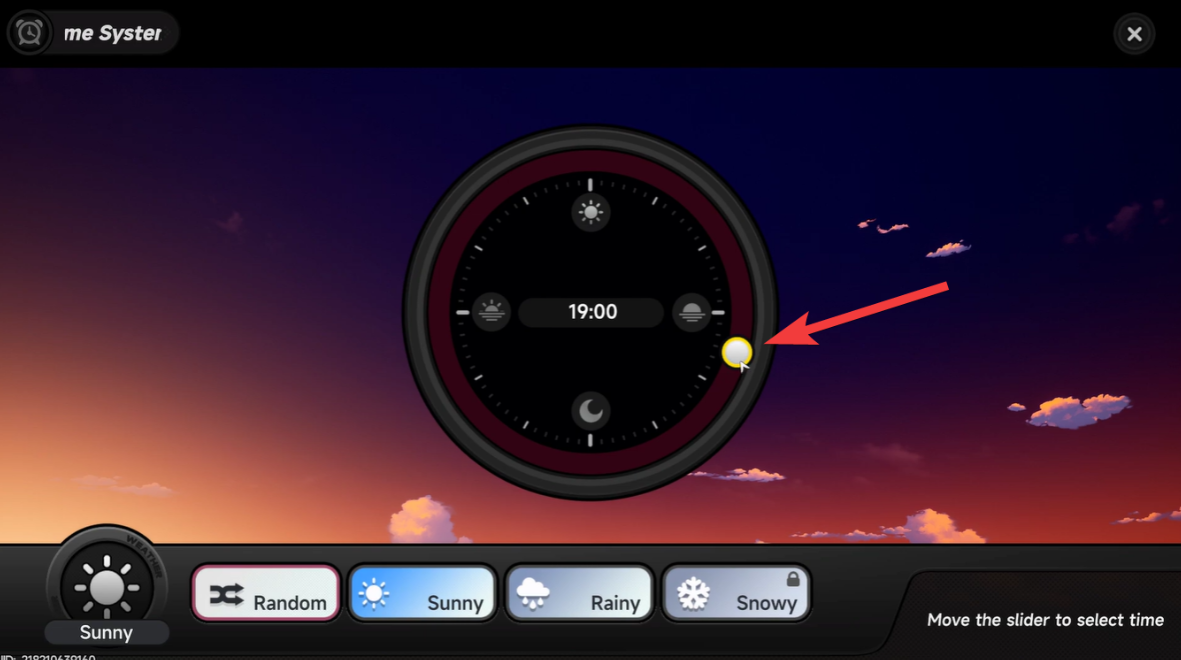
The interface is simple and appropriately organized: a 24-hour dial, a slider, and a weather panel at the bottom.
Instructions for rewinding the game time for 72 hours
Features of the 24-hour format
Take the white circle on the edge of the dial, drag it to any hour, and confirm with the button at the bottom. The pace here is convenient, but the time works strictly in 24-hour format — there is no 12-hour, so get used to it.
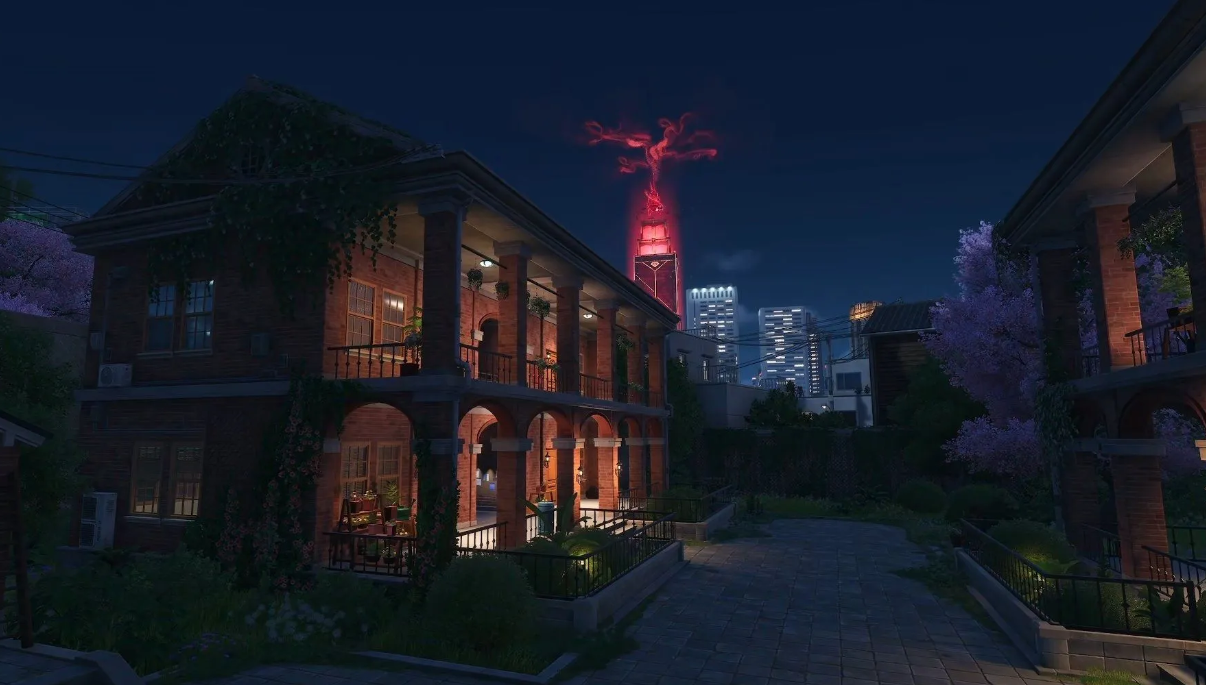
You can turn the knob several times in a row — the system will skip up to 72 hours in one run. Is it past midnight? The clock will show “Tomorrow”, then “The day after tomorrow”. There are no restrictions on the number of passes — there are no calendar events in the game, so rewind at least a year ahead if you don’t get bored.
The effect of story tasks on the time of day
It is worth knowing that some tasks themselves dictate the weather and time while you complete them. For example, the side quest “Gift of Nature” requires a sunset photo — the game will force the evening as soon as you take the task to the tracker.
How can I change the weather conditions and unlock the snow?
Available weather options in the bottom panel
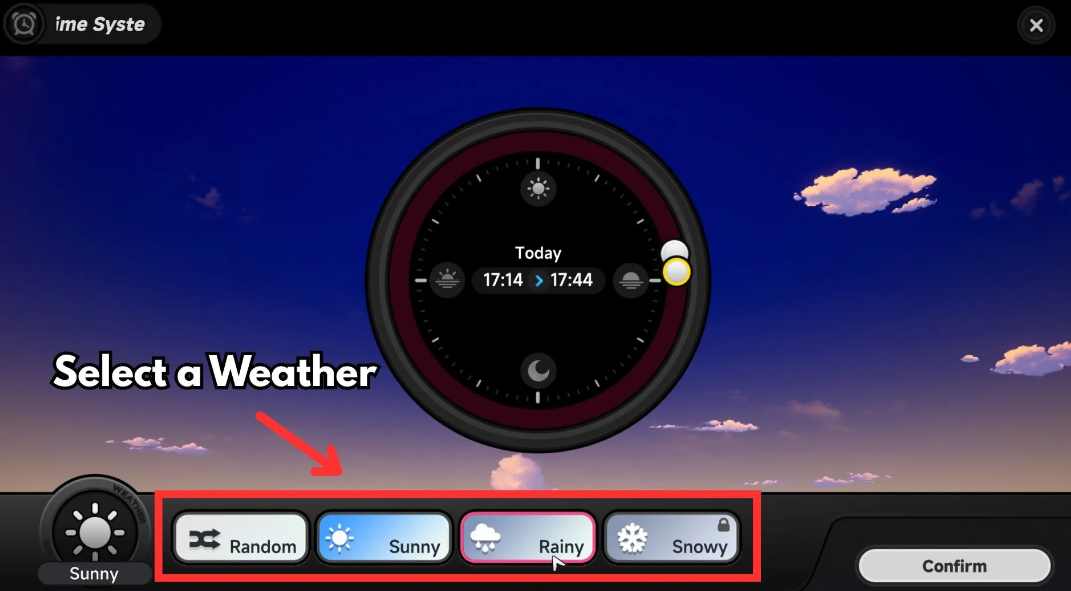
There are four options in the bottom panel of the “Time System”:
-
Sunny
-
It is rainy
-
Snowy (blocked by default)
-
Accidentally
Select it and click “Confirm”. The time will be gone for 30 game minutes, the weather will change. It can be combined with skipping time: they set the snow and rewound it for the evening — everything works at the same time.
Completing the Retrograde Poem quest for you
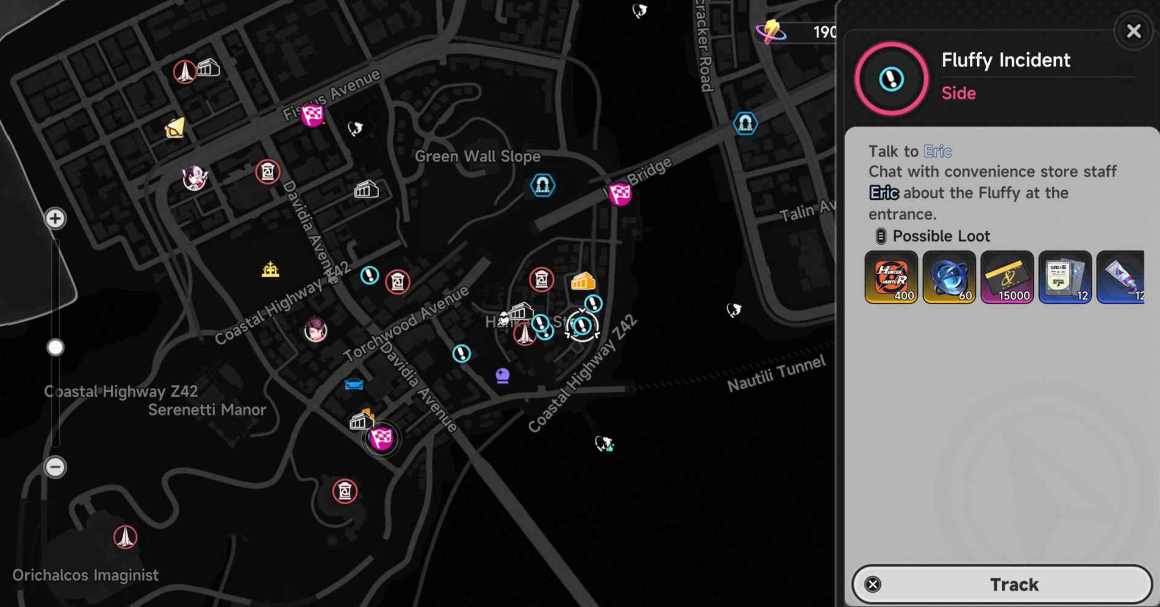
The variety of weather conditions is a nice bonus. Snow, however, requires unlocking. Go to the side quest “Retrograde Poem for you” — it glows on the Heather map as “So… Collect cold air?”. A point south of the Wertheimer Tower in Northridge Town. The quest is available immediately, no prerequisites — take it and do it.
Setting the environment and time of day in photo mode
If your goal is the perfect shot, don’t mess with the “Time System”. The photo mode has separate environment settings: there you can change the time of day and the weather without any confirmation, and even tweak a bunch of other parameters — lighting, contrast, depth of field. Visually and much more convenient for aesthetes.
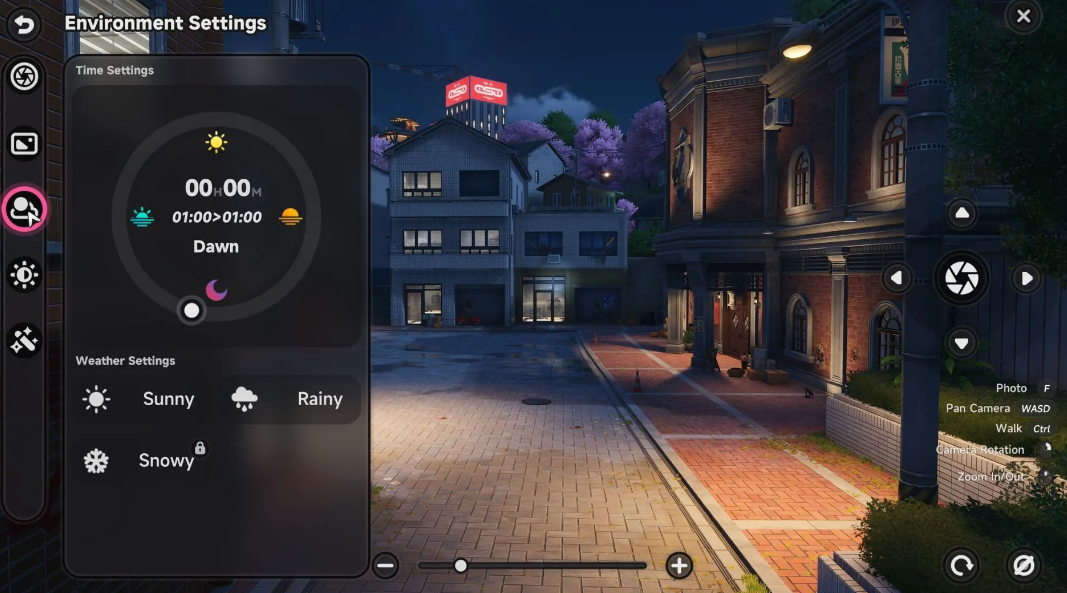
In short: if you want a role—playing game, spin the clock on your phone. If you want a masterpiece for the gallery, switch to photo mode right away.
How to fix time bugs in NTE and find Phoenix? The
mechanics of changing the day in NTE are still poorly tested — the game is fresh, so technical problems in the first weeks were expected. Most often, gamers suffer from Phoenix. This NPC acts as the main hub for time management in the story, but sometimes he stupidly disappears from the map. Or he stands like a statue, ignoring any attempts to start a dialogue.
In 90% of cases, an active quest is to blame. If the current mission is tightly tied to a specific time of day, the game intentionally locks up the Phoenix interface. Reset the task tracking (or run to the nearest checkpoint) and the loss will appear immediately.
If there are no quests in the tracker, but the character ignores reality anyway, we try the base.:
-
Relog. We go to the main menu and load back up. This forcibly updates the state of the NPC in the current loading zone.
-
Jump across the map. Teleport at least one area away from your point, and then jump back. The character spawn will restart.
-
Hidden locks. Take a look at the “Tasks” menu and filter the list by the “Blocked” status. System events like to hang quietly in the background, blocking access to Phoenix.
Time System Interface Error in Neverness to Everness
It also happens like this: the interface button is hanging on the screen, but when you press it, you catch silence (or the left menu opens altogether). Usually, this sore comes out immediately after installing fresh patches on the client.
How to treat it:
-
First, we close all the background garbage. Collapse the map, inventory, and quest log — the UI layers periodically clash with each other.
-
Try to enter through the radial menu. Hold down the desired button and select the watch from there. This is a separate trigger that bypasses the phone.
-
Didn’t help? We are doing a complete restart of the client. (By the way, if you play on mobile phones, you need to kill the process in the manager, and not just swipe the game into the background).
Why doesn’t the weather change in NTE after confirmation
We selected the necessary conditions, pressed “Confirm”, the animation played out, but nothing changed around. It’s a familiar story. Most likely, you accidentally wandered into a story zone or entered an instance, for example, a closed dungeon. Local scripts in such places always interrupt your manual settings. The way out is simple: leave the quest area or switch it to the “inactive” status.
The second scenario is a banal out—of-sync with unstable ping. The server is responsible for changing the weather in NTE, not just your PC or smartphone. Give the system 10-15 seconds to think before clicking again.
How do I send a ticket to the Hotta Studio support service?
If dancing with a tambourine does not save, and the bug is reproduced in a circle, the problem is buried deep in the client’s files or is hanging on the server. Only official support will help here.
Forget about third-party forums. Follow the route directly: in-game menu → Settings → Support Service. This is the only way your ticket will fly straight to the tables of Hotta Studio. And be sure to attach a screenshot with an open task log and visible coordinates on the mini-map — this will save you a couple of days waiting for a response.
Read more: Juyuan guide.